Last Updated: 10/12/2026 - 13:50

Reusable Content

Custom blocks (or Reusable Blade Blocks) allow you to create your own reusable blade rows. By creating a custom block, you can repeat the same custom row on any page, in any location desired. 

Newsletter sign-ups or CTAs are great examples for this type of feature on the Web Theme, as one site may want to encourage sign-ups to their newsletter and can easily create one styled piece of content and have it show in a multitude of pages throughout the site. Also, editors can match the site's color palette or throw in a repeatable image to drive home a consistent message easily. 

blade block example shot

Blade Block in use at brand.ucsb.edu

Step 1: Create a custom block

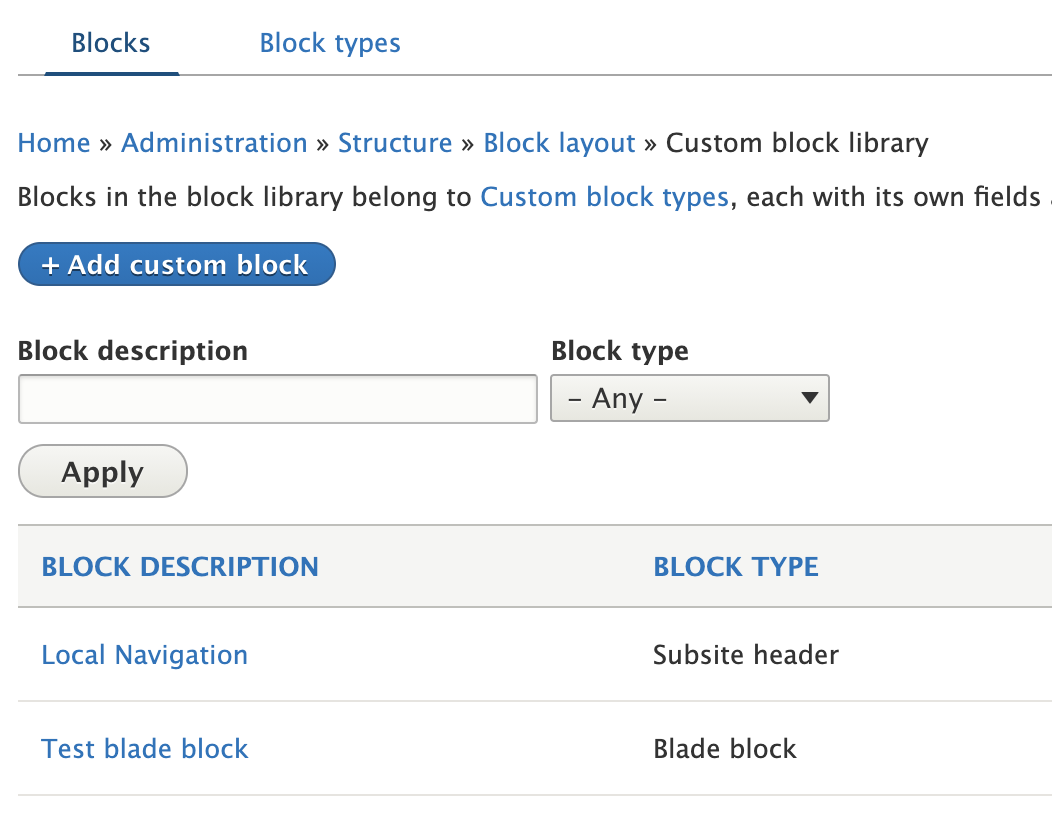
Structure > Block layout > Tab: Custom Block Library (admin/structure/block/block-content).

Select "Add custom block" blue button. The Add custom block page appears.

Select Blade block


add custom block


Step 2: Customize your block

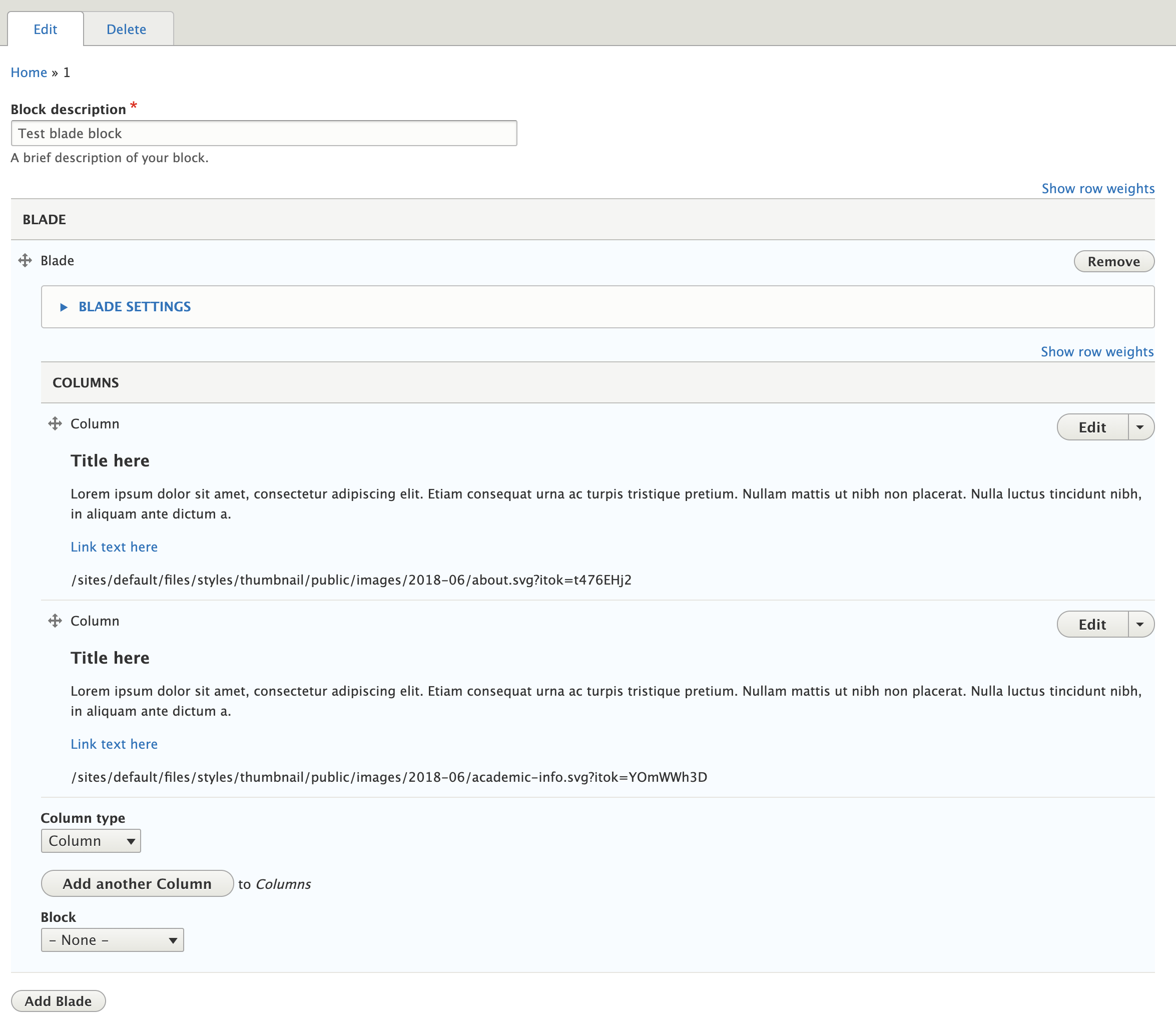
  • Configure the Blade Settings tab: Background color or image, padding, border.
  • Set Column Styles: Colors and Width (desktop and mobile)
  • Make column(s) for your repeatable block. Add images, buttons, CTAs.
  • Save.

webtheme demo of test blades

Two Column Re-usable Blade Block example

Step 3: Choose the Blade Block in a Blade

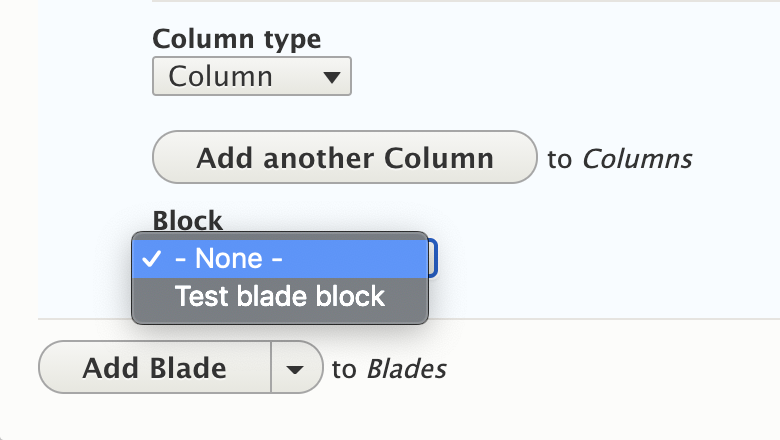
  • Edit Basic Page > Main Content > Add Blade > "Block" Dropdown

select a blade block example

Read more about Custom Blocks on Drupal.org