Changelog #43
Introduces a one-time migration from CKEditor 4 to CKEditor 5 for the UCSB Web Theme, providing a modern, accessible editing experience while preserving existing content.
The migration includes:
- Migrates all text formats (full_html, basic_html, restricted_html) to CKEditor 5.
- Converts legacy embeds (video_embed_wysiwyg) to <drupal-media>.
- Disables incompatible filters and enables required CKEditor 5 filters.
- Uninstalls CKEditor 4 and related modules.
Installation Steps
The CKEditor 5 migration process must be run individually in each environment (Dev, Test, Live). This migration does not rely solely on configuration. Instead, it actively scans and updates existing content in the database. Because content differs between environments, running the migration in one environment does not apply those changes elsewhere.
- Pull the latest upstream changes.
- Login to your account
- Go to Extend: /admin/modules
- Select and install the UCSB CKEditor 5 Migration (ucsb_ckeditor5_migration) module.
- The module will now automatically begin the migration. Review the status message to ensure clean migration.
- Review Full HTML, Basic HTML, and Restricted HTML to confirm they are using CKEditor 5.
- Verify the UCSB Button and UCSB Icon toolbar items are now present in the CK5 Editor when editing a page.
- Verify existing content with buttons and icons are rendering correctly and look the same as before the migration.
- If you are embedding videos in your content, verify the videos are still displaying correctly.
We are providing an additional Test Guide with a detailed checklist to verify all the plugins are fully functional. The checklist has information about plugins you may need to install manually or are no longer supported in CK5.
After the migration is complete, the migration module can be uninstalled.
For custom themes not using ucsbweb as the base theme:
- Copy the
/web/themes/ucsbweb/css/ckeditor5-content.cssinto your/web/themes/your-subtheme/css/ckeditor5-content.css - Add the ckeditor5-stylesheets: - css/ckeditor5-content.css into your subtheme.info.yml
Read the Test Guide for detailed instructions.
New changes:
The toolbar icons for the UCSB Button and UCSB Icon plugins in CKEditor 5 have been updated. The new icons can be seen in the photo below.
In addition, CKEditor 5 now groups overflowing toolbar items under the kebab (three dots) menu when there is not enough horizontal space to display all toolbar buttons in a single row. This helps prevent the toolbar from wrapping into multiple lines on narrower screens or in constrained editor widths.

UCSB Button Plugin
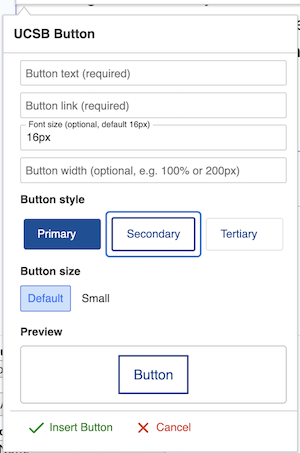
Required fields are now more clearly labeled. Font size and button width fields now include example values, button styles and sizes are easier to select, and colors are now displayed as compact swatches instead of large labeled tiles.
The live preview for Secondary and Tertiary buttons has also been improved to better reflect how these styles behave on the front end. Previously, the selected color appeared in the preview, which made it seem like custom colors could be applied to Secondary and Tertiary buttons. The updated preview now makes it clearer that color selection only applies to Primary buttons.

UCSB Icon Plugin
The UCSB Icon plugin interface has also been redesigned in CKEditor 5. Icons can now be searched and filtered by category, making them easier to find without scrolling through the full icon list. The updated layout also provides a more compact color picker, clearer alignment options, and a larger live preview area. The live preview is only shown after an icon has been selected.

Video Embedding
Video embedding is now handled through the Insert Media button in CKEditor 5 rather than through a separate video embed plugin.

Editors can use the media library modal to insert either uploaded video files or Remote Video media items. Remote videos can be added directly by pasting in a YouTube or Vimeo URL, while uploaded video files can be selected or uploaded from the Video media type tab.

